As a super user, you will have the ability to manage your group of users and assign credits without the need for a Neem Admin to support you for every little change.
When you log in to your RHINO dashboard, you will see the option on the left to 'Manage Group'.
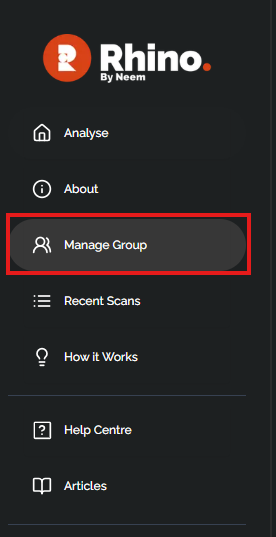
This will open up the 'Manage Group' screen wheree you will be able to add and remove users, see how many credits are remaining for the account, and allocate credits to individual users.
You can also, using the 'Analytics' button, see group usage analytics over a specified date range.
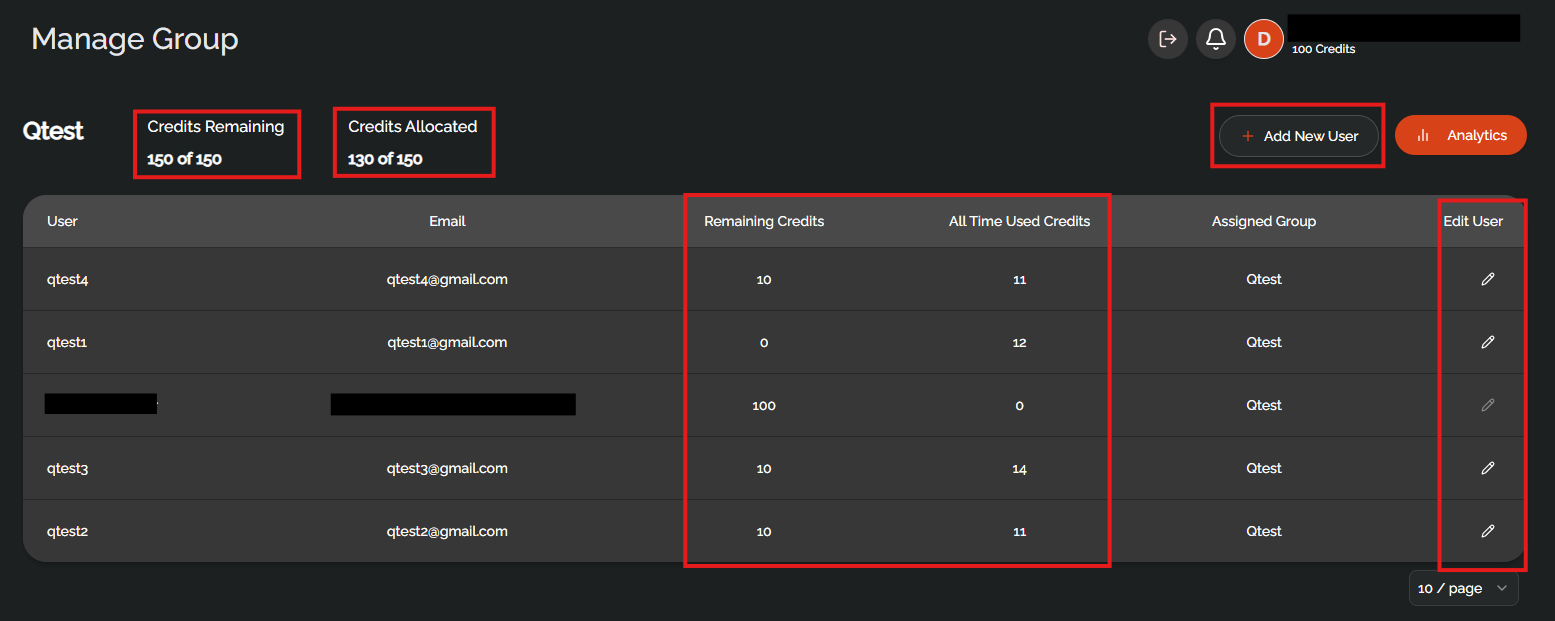
To manage a user's credits, click on the pencil in the 'Edit User' column and it will open up this window:
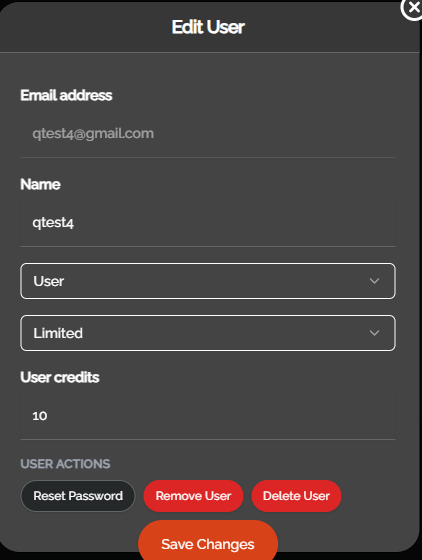
Here you can change the user's name and adjust their credit allowance. If a user is 'Limited', this means that they only have access to as many credits as you give them. NOTE: You cannot give more credits than available on the group account.
If a user is 'Unlimited' this means that they have full access to the amount of credits on a group account.
To add a new user, click the 'Add New User' button and this screen will pop up:
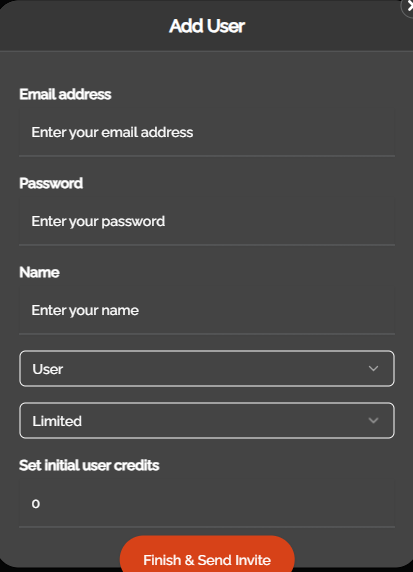
Enter the new user's email address, and name, and input a default password for them (they will get prompted to create a password when logging in for the first time. Assign them their user type, 'Limited' or 'Unlimited' and the amount of credits for their account. Hit 'Finish & Send' to add them to your group.
If you are in need of further credits for your group or are having issues regarding the creation of accounts or assigning credits, please get in touch with your Neem administrator.
Was this article helpful?
That’s Great!
Thank you for your feedback
Sorry! We couldn't be helpful
Thank you for your feedback
Feedback sent
We appreciate your effort and will try to fix the article