BE CAREFUL: The link will be publicly viewable with no login required. Take extra care when sharing product designs that aren't yet live.
To create a public link, click the globe icon next to the 'Add Test Title' field. You may have already named your test group, that doesn't matter.
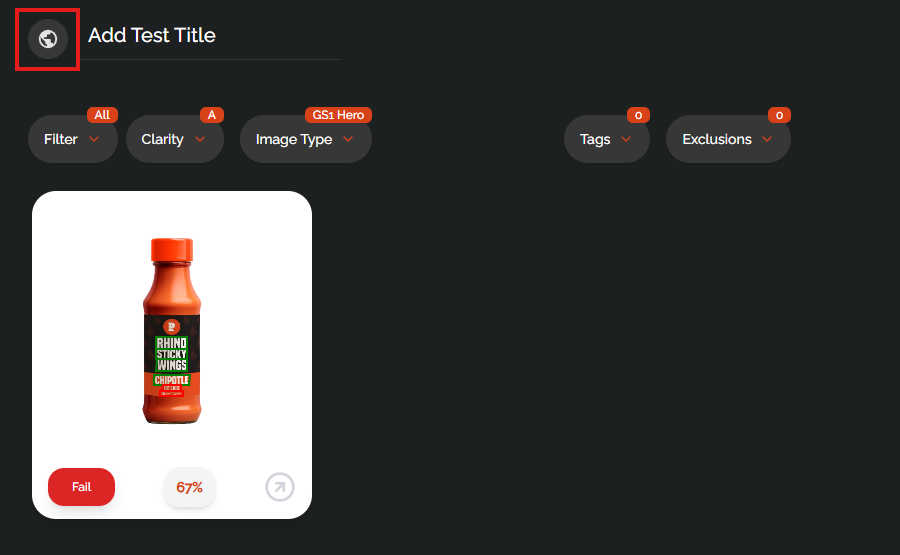
After clicking the icon, it will create the link and make it publicly accessible, before copying it to your clipboard. To share it again, just click the icon twice, once to remove the public link, and once more to recreate the link.
Here's an example link showcasing Heineken Hero Images created by Neem which are now live on UK retailers.
Was this article helpful?
That’s Great!
Thank you for your feedback
Sorry! We couldn't be helpful
Thank you for your feedback
Feedback sent
We appreciate your effort and will try to fix the article